
Stock Control Chart: How to Read and Draw One (UK Guide)
A stock control chart tracks one item's stock against maximum, re-order and buffer levels. Here are the formulas, a worked example and how to draw one.
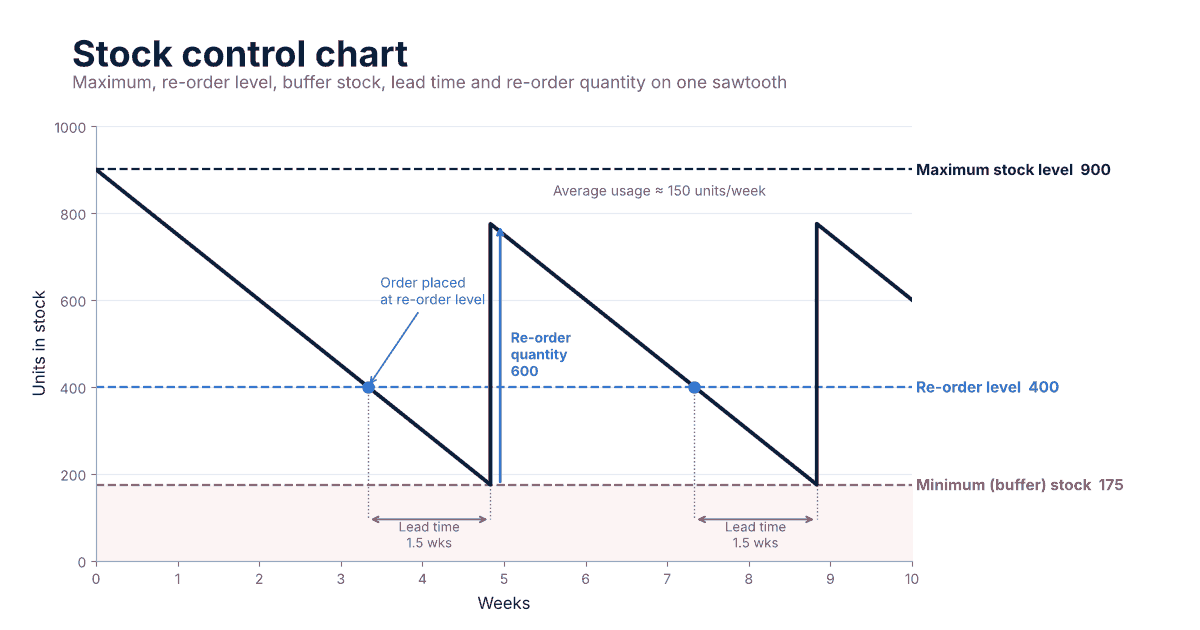
It is one of the first diagrams anyone meets in stock control, and once you can read one you can tell at a glance whether an item is being ordered too late, too much or too often. This guide covers each line, the standard formulas, a worked example, how to draw the chart in Excel or Google Sheets, and where it stops being enough for a real business.
What a stock control chart shows
A stock control chart (also called an inventory control chart or stock control diagram) is a line graph. Time runs along the bottom, units in stock run up the side, and the stock level forms a sawtooth: a slow slope down as stock is used, then a sharp vertical rise when a delivery arrives.
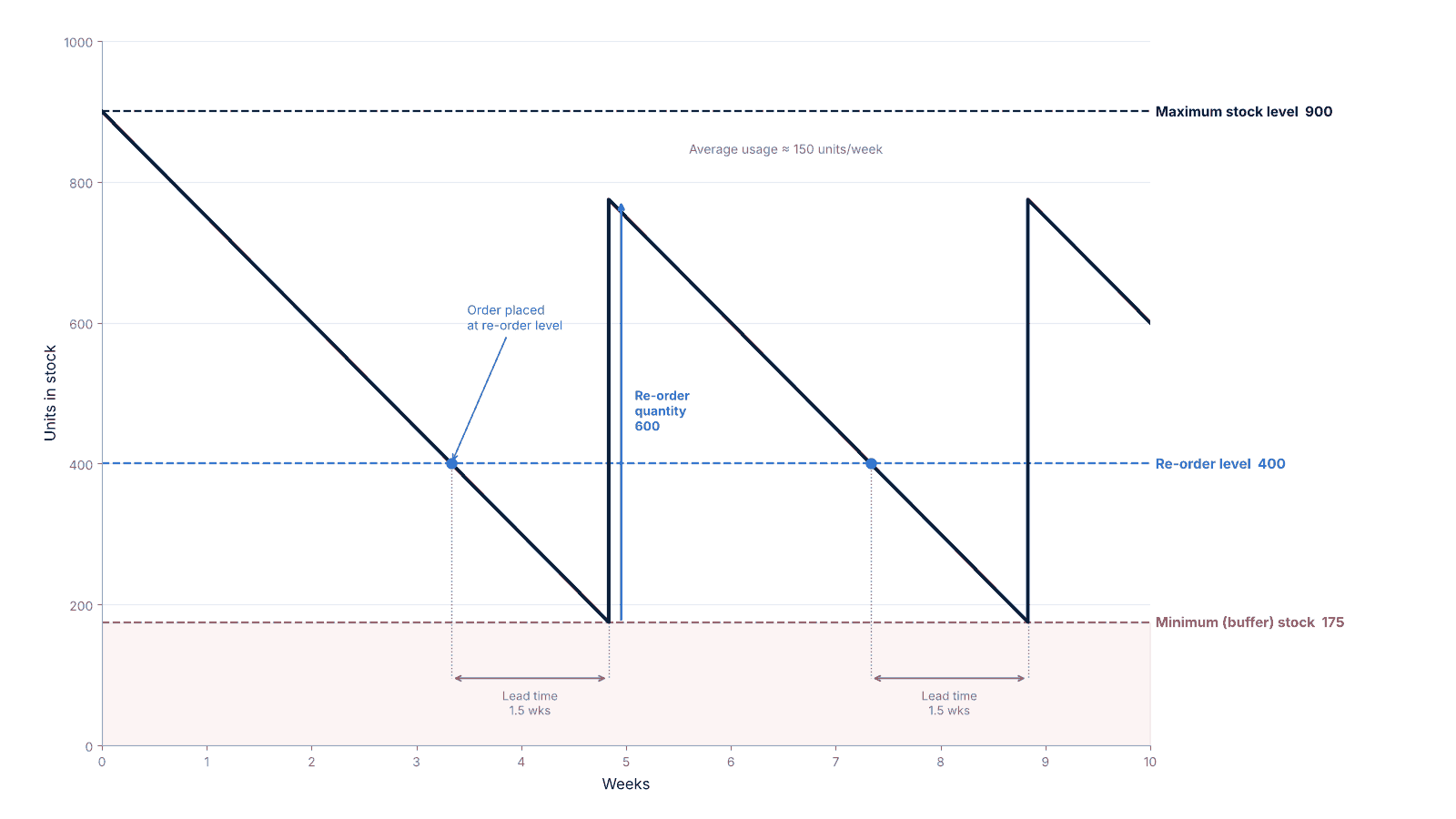
The worked example below, drawn as a stock control chart. Stock starts at the maximum, an order is placed each time the line crosses the re-order level, and each delivery lands as stock reaches the buffer.
Every stock control chart is built from the same six ideas:
| Element | What it means | How it appears on the chart |
|---|---|---|
| Maximum stock level | The most stock you should ever hold. Above it, cash and space are being wasted. | Dashed horizontal line at the top |
| Re-order level | The stock level that triggers a new order. | Dashed horizontal line in the middle |
| Minimum (buffer) stock | The safety cushion. In normal conditions stock should not fall below it. | Dashed horizontal line near the bottom |
| Re-order quantity | How much you order each time. | The height of each vertical jump |
| Lead time | The time between placing an order and receiving it. | The horizontal gap between the order point and the delivery |
| Usage rate | How quickly stock is used or sold. | The steepness of the downward slope |
The sawtooth shape itself is covered in more depth in our guide to cycle stock, which looks at the working stock that cycles between deliveries. This post is about the control lines drawn around it.
The formulas
UK textbooks usually teach three formulas for the control levels. They need six inputs: minimum, average and maximum usage, and minimum, average and maximum lead time.
Re-order level = maximum usage × maximum lead time
Minimum (buffer) level = re-order level − (average usage × average lead time)
Maximum level = re-order level + re-order quantity − (minimum usage × minimum lead time)
The logic:
- The re-order level covers the worst case: at peak usage and the longest lead time, you only just run out as the delivery arrives.
- The minimum level is where stock should be when a delivery arrives under normal conditions.
- The maximum level is the highest stock can reach, when usage is slow and the supplier is quick.
These are the commonly taught versions. Some businesses size the buffer statistically from demand variability instead, but the classroom formulas are a sound place to start.
A worked example with real numbers
Take a fictional fasteners wholesaler and one product: M10 hex bolts, sold in boxes. Units are boxes.
| Input | Value |
|---|---|
| Minimum usage | 100 boxes per week |
| Average usage | 150 boxes per week |
| Maximum usage | 200 boxes per week |
| Minimum lead time | 1 week |
| Average lead time | 1.5 weeks |
| Maximum lead time | 2 weeks |
| Re-order quantity | 600 boxes |
Step 1: re-order level
Maximum usage × maximum lead time = 200 × 2 = 400 boxes.
When stock falls to 400 boxes, place an order.
Step 2: minimum (buffer) level
Re-order level − (average usage × average lead time) = 400 − (150 × 1.5) = 400 − 225 = 175 boxes.
On a normal cycle, the delivery should arrive with about 175 boxes still on the shelf.
Step 3: maximum level
Re-order level + re-order quantity − (minimum usage × minimum lead time) = 400 + 600 − (100 × 1) = 1,000 − 100 = 900 boxes.
Stock should never go above 900 boxes.
The results
| Level | Calculation | Result |
|---|---|---|
| Re-order level | 200 × 2 | 400 boxes |
| Minimum (buffer) level | 400 − (150 × 1.5) | 175 boxes |
| Maximum level | 400 + 600 − (100 × 1) | 900 boxes |
| Average stock (often also taught) | 175 + (600 ÷ 2) | 475 boxes |
What happens over ten weeks
The chart above plays this out at average usage, starting with a full shelf of 900 boxes:
- Stock falls by 150 boxes a week and reaches the 400 re-order level after 3⅓ weeks (500 ÷ 150).
- The order takes 1.5 weeks. In that time 225 boxes are used, so stock is down to exactly 175, the buffer, when the delivery arrives.
- The 600-box delivery lifts stock to 775.
- Stock reaches 400 again 2.5 weeks later, the next order goes in, and the cycle repeats.
At average usage and average lead time, stock lands on the buffer line every cycle. The buffer only gets used when something goes worse than average.
How to draw a stock control chart
You can draw one on paper, but a spreadsheet is quicker and easier to change.
- Set up your inputs. Put minimum, average and maximum usage, the three lead times and the re-order quantity in labelled cells.
- Calculate the three levels. Use the formulas above in their own cells so they update when inputs change.
- Build a time column. List weeks (or days) down column A, starting at 0.
- Build a stock column. Start at your opening stock. For each period, subtract usage. When a delivery is due, add the re-order quantity. To get the vertical jump, list the delivery week twice: once with the stock before the delivery and once after.
- Add three constant columns. One for maximum, one for re-order level and one for minimum, each holding the same value on every row.
- Insert a scatter chart with straight lines. In Excel use Insert, Scatter, Scatter with Straight Lines. In Google Sheets choose a line chart and set column A as the X-axis. A scatter chart is what lets the deliveries show as vertical jumps.
- Format the lines. Make the stock line solid and bold and the three control lines dashed. Red for the buffer is a common convention.
- Mark lead time and re-order quantity. Add a text box or arrow between an order point and its delivery, and another beside one of the jumps.
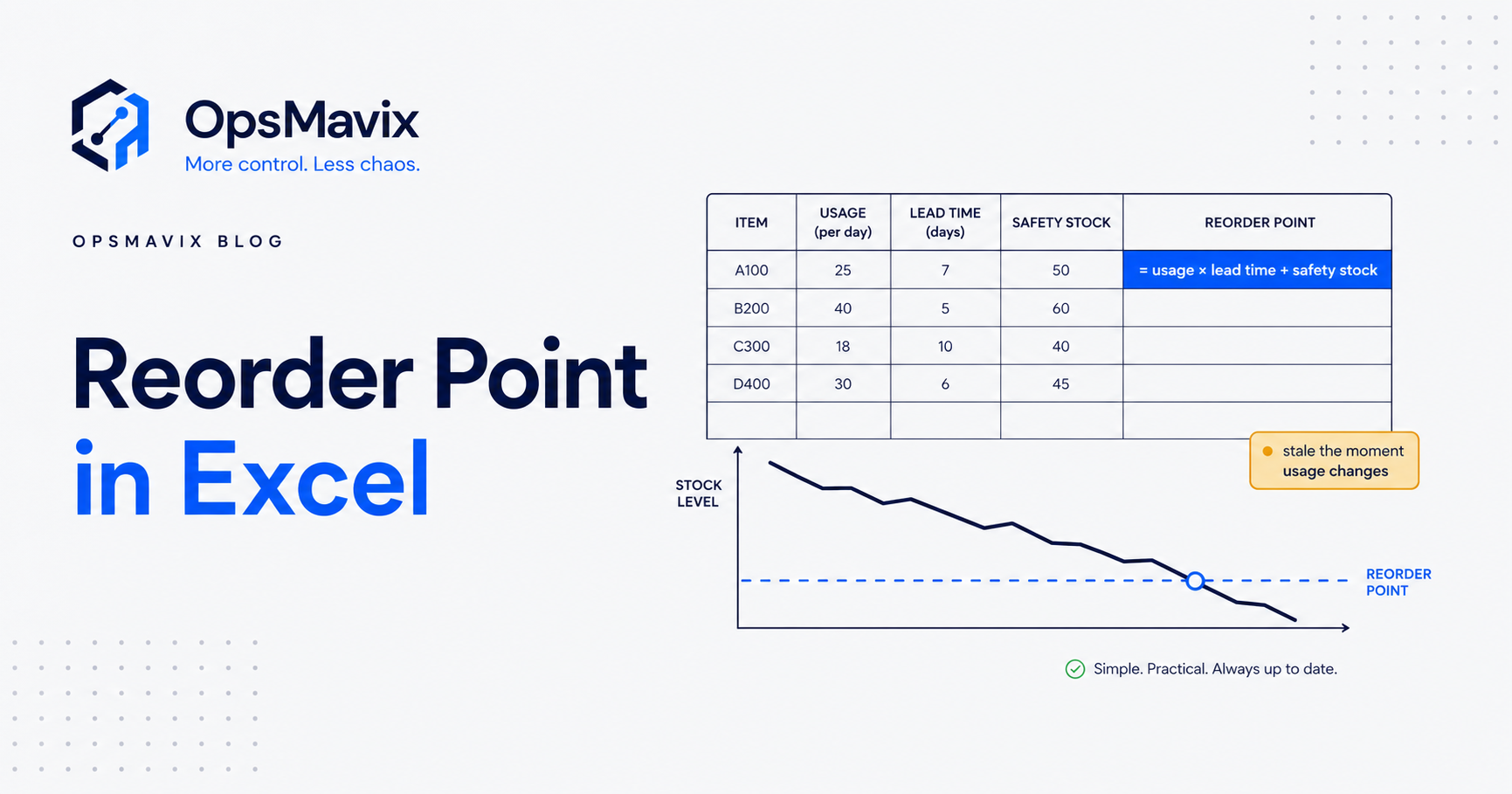
If you want the spreadsheet to work out the re-order point itself, our walkthrough on calculating a reorder point in Excel shows the formula and layout.
How to read it
The chart earns its keep when reality stops following the neat sawtooth. Here is what the common patterns mean, using the example numbers.
Stock dips below the buffer line
The buffer is doing its job, but something went worse than average. Either usage ran above 150 a week while the order was in transit, or the supplier was slower than 1.5 weeks.
In the true worst case, 200 a week for 2 weeks, the 400 boxes at the re-order point are used up to exactly zero as the delivery arrives. That is the point of the re-order formula. If stock dips below the buffer often, your average figures are out of date.
Stock overshoots the maximum line
Something has been ordered too early or too much. Common causes are a manual order placed “just in case”, a supplier sending more than ordered, or a re-order quantity that was never reduced after demand fell.
The highest stock should ever reach in this example is 900, when usage is slow (100 a week) and delivery is quick (1 week): 400 − 100 + 600 = 900. Anything above that is cash sitting on a shelf.
Lead time slips
Suppose the supplier starts taking 3 weeks instead of 1.5. At average usage, 3 weeks uses 450 boxes, but only 400 were on hand at the re-order point. Stock runs out after about 2⅔ weeks (400 ÷ 150), and the chart drops to zero and stays there until the delivery lands.
The fix is not to wait and hope. A longer lead time means a higher re-order level. Rerun the formula with the new maximum lead time.
Limitations of the chart in a real business
The stock control chart is an excellent teaching tool and a decent sanity check. It has real limits once you run a business on it.
| Limitation | Why it matters |
|---|---|
| Usage is treated as fixed | Real demand is seasonal, promotional and lumpy. Levels set in March may be wrong by June. |
| One item at a time | A wholesaler with 2,000 SKUs cannot draw and watch 2,000 charts. |
| It is a snapshot | The chart shows the plan, not live stock. Without current figures it cannot warn you. |
| Inputs go stale | Minimum and maximum usage and lead times need re-measuring regularly, and rarely are. |
| No link to orders | The chart says when to order. Someone still has to notice and raise the purchase order. |
The usual workaround is a simpler physical signal, such as a kanban two-bin system, for cheap, fast-moving parts, plus a spreadsheet for everything else. That works until the spreadsheet falls behind.
The step up is to have reorder points calculated by the system that already holds your stock and sales data. Usage and lead times are measured from real transactions, levels are recalculated as demand moves, and the item that crosses its re-order level appears on a list (or as a draft purchase order) without anyone drawing a chart. Our free inventory reorder calculator is a quick way to see what that looks like across a list of SKUs, and the wider routine is covered in inventory management best practices.
Frequently asked questions
What is a stock control chart?
It is a graph of one item’s stock level over time, drawn against a maximum stock level, a re-order level and a minimum (buffer) stock level. Lead time and re-order quantity are marked on it to show when orders are placed and how much arrives.
What is the formula for the re-order level?
The commonly taught formula is maximum usage × maximum lead time. In the worked example that is 200 × 2 = 400 units.
What is the difference between minimum stock and buffer stock?
On a classic stock control chart they are the same line. It is the stock you expect to have left when a delivery arrives under normal conditions, held as a cushion against slower deliveries or higher demand.
Is a stock control chart the same as an inventory control chart?
Yes. Stock control chart, inventory control chart and stock control diagram all describe the same sawtooth graph with maximum, re-order and minimum levels.
Can I draw a stock control chart in Excel?
Yes. Put weeks in one column and stock levels in another, add three constant columns for the control levels, and insert a scatter chart with straight lines so deliveries show as vertical jumps.
How OpsMavix Can Help
A stock control chart is the right way to understand reorder logic. Running a business on it means re-measuring usage and lead times, recalculating levels and watching every SKU by hand.
OpsMavix builds owned, fixed-price operations systems for wholesale, distribution, ecommerce and manufacturing businesses. Our inventory automation system calculates re-order levels from your real sales and supplier data, flags items as they cross them and turns the signal into a purchase order, with no per-seat fees.
If your stock control still lives in a spreadsheet and you are seeing stockouts or overstocks the chart should have prevented, get in touch and we will look at where the numbers are going wrong.
Keep reading
Getting value from OpsMavix? Add us as a preferred source on Google — you'll see more of our operations content in your AI Overviews, AI Mode and Search.