
Client Portal Examples: What Clients Do and What Staff See
Client portal examples show how businesses give customers a private place to exchange documents, follow work, approve decisions and pay invoices. The useful...

Client portal examples show how businesses give customers a private place to exchange documents, follow work, approve decisions and pay invoices. The useful comparison is what each person can do, what staff receive, and how the record changes when the normal process breaks.
Quick summary: The five examples below cover legal work, trade ordering, construction, agencies and an accounting portal we built. The UK government’s Cyber Security Breaches Survey 2025/2026, published 30 April 2026, found that 43% of businesses identified a breach or attack in the preceding year, so access and record handling deserve attention alongside appearance.
An invoice can show as paid without a new payment arriving. The credit-note documentation for a payment processor explains that reducing an open invoice’s balance to zero changes its status to paid. That is why a useful portal must explain what happened, beyond displaying a reassuring badge.
By Jorgo Bardho, founder of OpsMavix.
What is a client portal?
A client portal is a restricted online workspace where a business and its customers exchange information or complete agreed tasks. It might sit beside an accounting system, a legal practice platform, a construction application or an ordering system. The login opens access to a particular relationship.
That relationship determines the design. A legal client needs the documents and messages for their matter. A trade buyer needs the correct company prices and delivery details. A homeowner may need to approve a selection. Giving all three the same dashboard would miss the actual work.
The portal also needs an internal counterpart. Someone receives the uploaded document, reviews the requested change or deals with a failed payment. If the client completes a form but a member of staff must reconstruct its meaning from email, the handoff remains unfinished.
Keep the distinction from customer relationship management clear. A portal exposes selected actions and information to customers; the wider client relationship management process includes responsibilities, follow-up and the team’s working history. Publishing more internal fields does not automatically make the customer experience more useful.
For the examples below, vendor documentation establishes advertised functionality. The accounting example uses our own build facts. The questions about suitability and demonstrations are our recommendations, rather than claims that every product implements every suggested workflow.
Four real portal products serving different jobs
These are four separate products with different working contexts. Compare the business task each one supports before comparing colours or menu layouts. Feature availability, configuration and regional payment support need checking with the supplier for your own use.
Clio for Clients: legal matters and shared documents
Clio’s UK client page presents Clio for Clients as a secure portal where a law firm and its clients communicate and share documents about their matters. Everything is organised around the matter, so the client’s first task is connected to an existing professional relationship rather than a general account.
On the staff side, Clio’s firm guidance explains sharing documents and folders from the matter, and warns: “Documents added to previously shared folders will automatically be shared with clients.” Folder-sharing decisions therefore deserve deliberate review.
Shopify B2B: ordering for the right company location
Shopify’s B2B account guidance documents order history, tracking and reordering by duplicating a previous order. Customers assigned to several company locations choose which location they are buying for, connecting the portal action to the correct business account.
The merchant configures company details, catalogues and order submission. Orders can be submitted as drafts for review. The useful pattern is controlled repeat ordering, with company-specific terms and an explicit decision about when an order becomes approved.
Buildertrend: homeowner decisions attached to the job
Buildertrend’s client-contact documentation describes a portal where invited clients can view progress, approve selections and make payments. Adding a contact and inviting them are separate actions, and the builder controls the information and actions made available.
Its client portal FAQ confirms that access varies with the builder’s setup. For a construction business, the useful lesson is that client visibility should follow the job and agreed permissions. A demonstration should show an actual decision reaching the project team.
Assembly: agency files, conversations and commercial work
Assembly’s marketing-agency portal brings client-facing files, messages, tasks, contracts and invoices into a branded workspace. Its file-sharing page also describes creating client files and folders during onboarding. Those are useful patterns when work begins with repeated information requests.
For an agency, test what happens after a client uploads a brief or replies to a message. Ask who receives it and which project it belongs to. A branded workspace still needs a clear distinction between client-visible work and internal discussion.
What should a useful portal let the client do?
A useful portal should let the client complete a recurring task, understand its current state and identify what happens next. The exact task varies by industry. Use this comparison to decide which example resembles your workflow, rather than treating the products as interchangeable alternatives.
| Example | Main client action | Internal record or decision to inspect |
|---|---|---|
| Clio for Clients | Exchange matter-related documents and messages | Which matter and shared folder receive the information |
| Shopify B2B | Order or reorder for a company location | Correct catalogue, terms and order-review status |
| Buildertrend | Follow a job and approve selections | Project visibility and the recorded client decision |
| Assembly | Supply agency information and handle commercial tasks | Client workspace, task responsibility and supporting files |
| Our accounting portal | Exchange documents and messages, then pay invoices | Document organisation, conversation history and receivables |
There is no universal winner in that table. A wholesaler should not choose a portal because its document gallery looks good while ignoring order permissions. An accountant should not accept a polished invoice list if it cannot explain credits or partial payments.
Write the comparison as a sentence: “Our client needs to do this, and our team needs that record afterwards.” Then repeat it for the most troublesome exception. Those two sentences are a better starting point than a large wishlist copied from unrelated portal examples.
The accounting example from our own build
CPAs & Business Advisors: a shared place for ongoing work
For CPAs & Business Advisors, a Colorado accounting firm and our client, we built a website and portal covering documents, threaded messages and invoice payments. When we built it, we included partial payments, credit notes and write-offs alongside ordinary payment handling.
The document vault is organised by year and category. Staff have permission controls, and the administrative reports cover revenue, write-offs and accounts receivable. The walkthrough below separates those confirmed capabilities from the questions we recommend asking during a demonstration.
Walk through documents and messages from both sides
Client dashboard. Begin with the routes into the work: documents, messages and invoices. The first question is whether a client knows where to go without a staff member explaining the menu. A dashboard should help someone resume a task, particularly when visits are infrequent.
For the staff demonstration, switch to the same client’s context and find the related records. Check that the two views describe the same work. An aggregate management figure and an individual client’s position serve different purposes, so they should not be mistaken for equivalent screens.
Documents. In our build, clients and the firm exchange files through a vault organised by year and category, with long-term retention. The organisation gives the record a place beyond its original upload. Staff can return to that document when the corresponding work needs it.
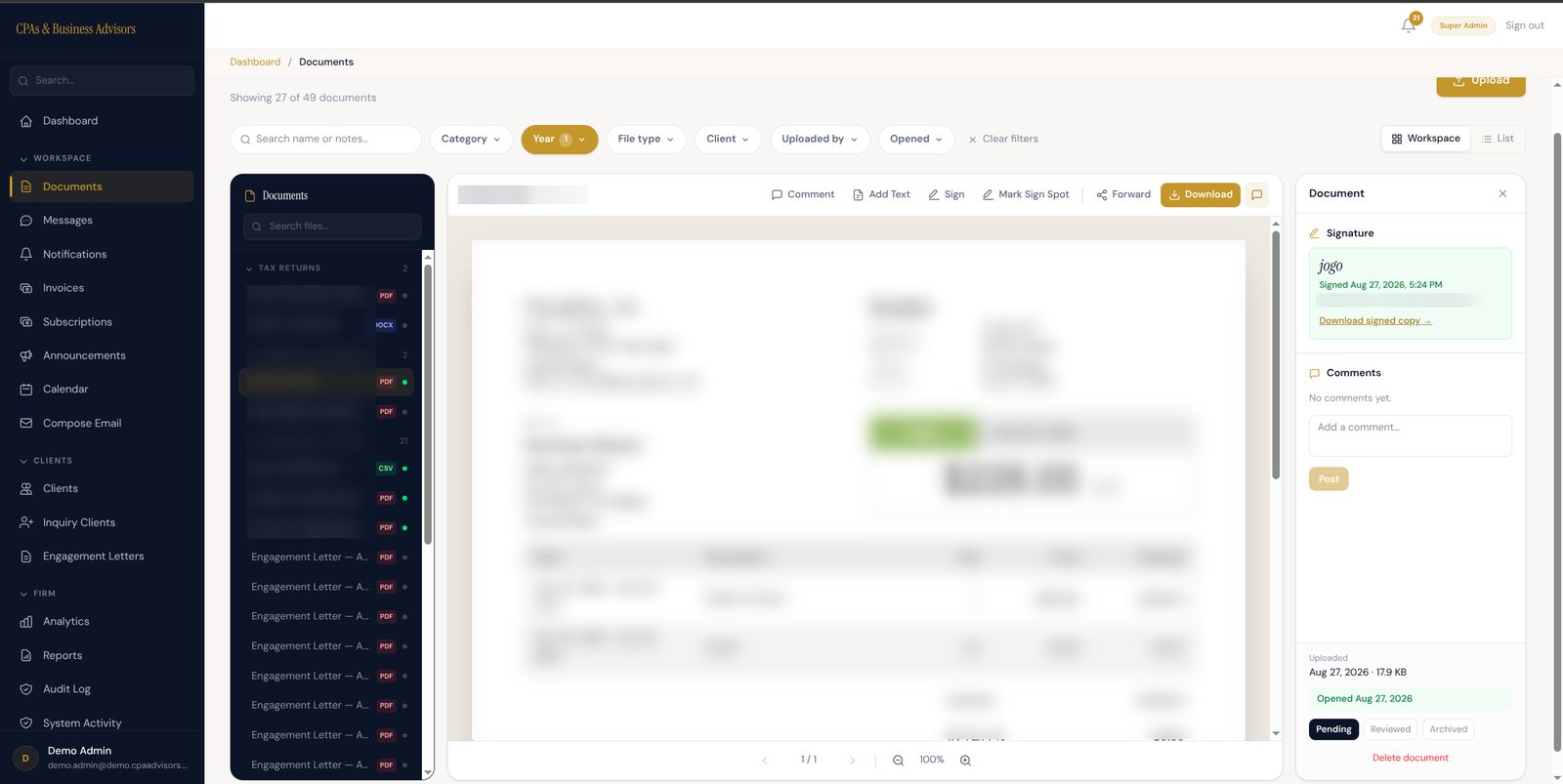
The document workspace in the portal we built, from its test environment. File names and document contents are blurred.
When assessing this pattern, use two similarly named files from different years. Ask someone unfamiliar with the system to find the right one. Then ask what happens when a client submits the wrong version. File storage, version handling and professional review are separate questions to resolve.
Do not assume an uploaded document has been checked merely because it appears in a list. Agree what acknowledgement means and how the team communicates that further information is required. This is a workflow requirement to demonstrate, rather than a result that a folder structure guarantees.
Messages. The portal includes text-message-style threaded conversations between the client and the firm. A question and its replies remain in the conversation history. The client can continue the exchange, while staff can use the thread to understand what has already been discussed.
For your own portal, test a conversation that outlasts the original employee’s availability. Can an authorised colleague understand the request and take responsibility? Decide how reassignment, notifications and urgent matters should work. The existence of a messaging screen does not establish those operating rules.
The useful record is the exchange in context: who asked, what was requested and what response was given. Avoid promising that messaging itself produces quicker answers. Response times depend on staffing and agreed service practices, and we do not have measured response-time improvements for this build.
Follow an invoice through payment and staff review
Invoices. Our build brings invoicing and online card payment into the portal, including partial payments, credit notes and write-offs. Start the demonstration with a specific invoice. Follow its amount, payment history and outstanding position rather than jumping straight to a summary dashboard.
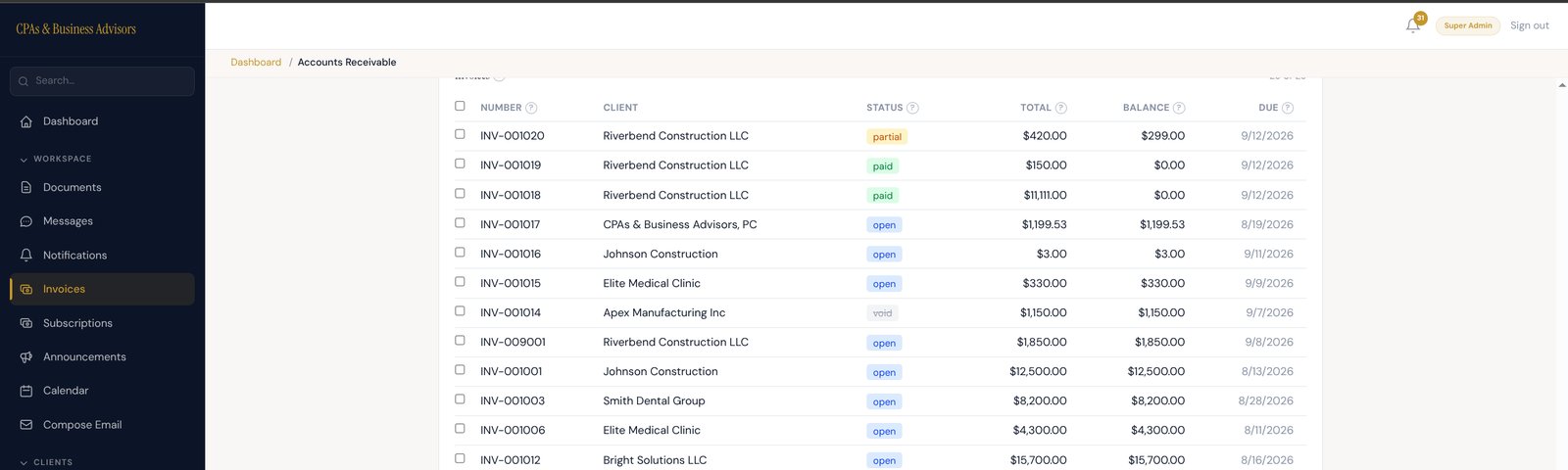
The invoice list from the portal’s test environment, using demo clients. Partial, paid, open and void invoices sit side by side.
Use a separate, hypothetical UK example to test the arithmetic. An invoice starts at £1,200. A £500 payment leaves £1,200 minus £500 = £700 outstanding. A subsequent £200 credit reduces that balance again: £700 minus £200 = £500 still due.
The customer has paid £500, not £700. The credit changes what is owed without representing another cash receipt. A useful demonstration must preserve that distinction in the invoice view and relevant reports. The sample figures here are an illustration, not this firm’s client data.
The pay page. The build has a custom pay page connected to its payment provider. Partial payment support is a confirmed capability. The provider’s partial-payment documentation explains how several payments can relate to one invoice, which is the underlying pattern the interface must represent correctly.
Test the return from payment as carefully as the payment form. What does the customer see after success, failure or an interrupted attempt? What can staff verify? Ask the supplier to distinguish a payment being attempted from a confirmed payment and to show recovery without another charge.
Staff permissions. The administrative panel includes per-employee permission toggles. Different staff responsibilities can therefore be reflected in the portal’s access settings. Demonstrate those settings using a limited employee account as well as an administrator, and inspect what each person can actually access.
For your own business, decide who may view a document, change invoice information, issue a credit or review management reports. Those are separate responsibilities even when one employee handles several of them. A shared administrator login would make that distinction much harder to maintain.
Receivables and reports. The build includes dashboards covering revenue, write-offs and accounts receivable. These give staff another view of the underlying commercial records. Use the invoice from the earlier demonstration and ask how its payments and adjustments are represented in the relevant reporting.
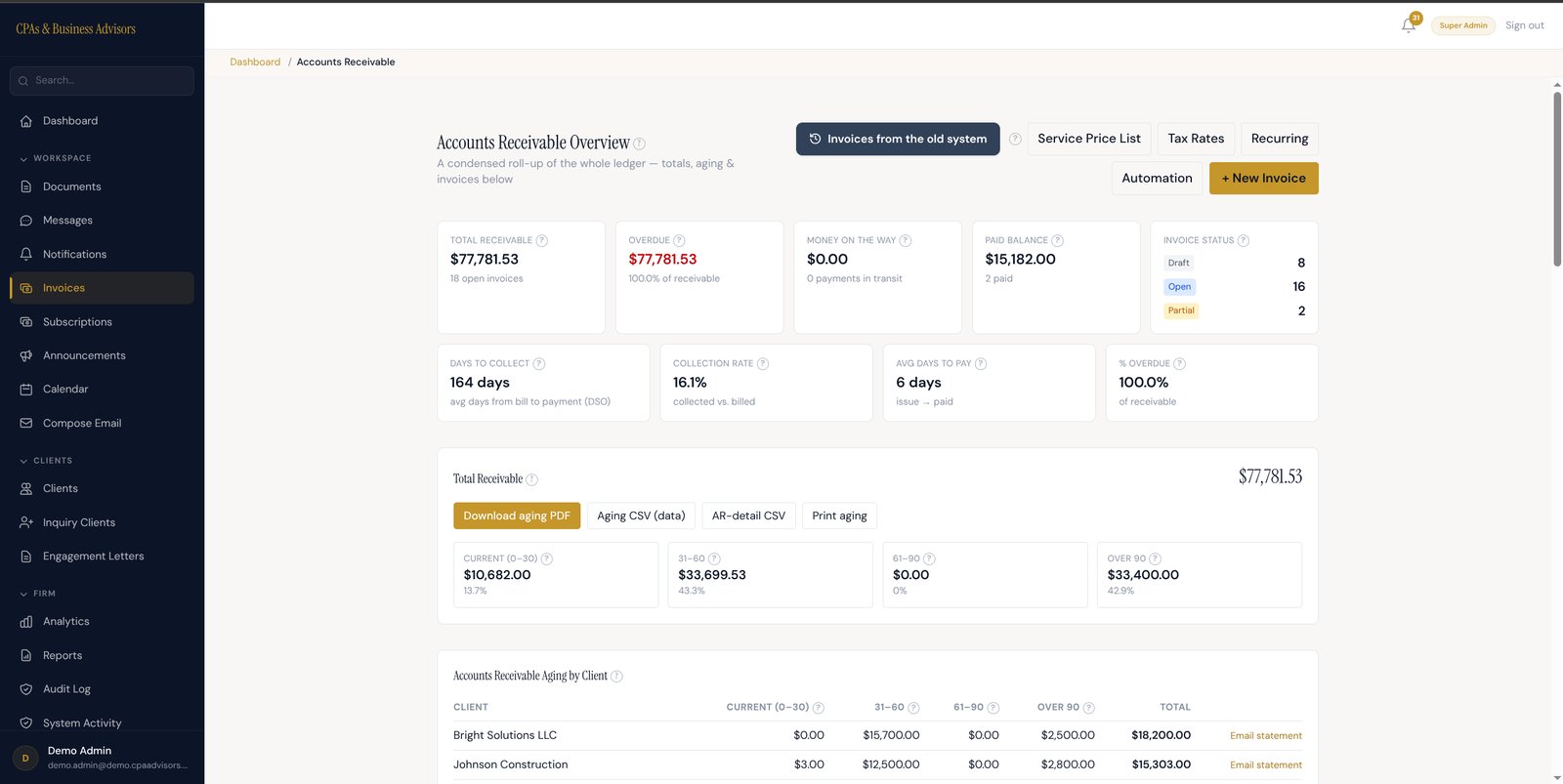
The accounts receivable overview from the portal’s test environment, using demo data.
A write-off, a credit and a payment should remain distinguishable when reviewing what happened. Their detailed accounting treatment needs the firm’s accounting policy. The portal’s reporting capability is established; any claim about improved collections would require measured evidence that we do not yet have.
For the wider collection process, see our guide to accounts receivable software for small businesses. A client-facing payment journey is one part of that work. Deciding when to follow up, who owns a dispute and when to escalate remains an internal responsibility.
What belongs in the portal rather than the core system?
The portal should contain the customer-facing view and agreed customer actions, while the core system holds the authoritative operational records appropriate to your business. Decide that boundary for each record. Two applications independently maintaining an invoice balance create a reconciliation problem waiting to happen.
For trade ordering, the customer might choose quantities and request a delivery date. Stock availability, allocation and fulfilment decisions still need an authoritative operational source. The portal can present the result and accept a request without becoming a separate stock ledger maintained by someone copying figures.
For professional services, the portal may hold the shared documents and conversation. Internal work allocation, professional judgements and accounting entries can remain in the systems designed for those tasks. Exposing an action to the client does not mean exposing every internal field behind it.
Write down which system creates the record, which may change it and how corrections reach the other views. Include an owner for failed updates. A portal that reports an exception clearly is more useful than one displaying an apparently current figure after its connection has failed.
This is also where scope expands quietly. A request to show delivery progress may require reliable dispatch records first. Establish that dependency before promising the screen, otherwise the project acquires an unplanned internal operations problem after the visible design has already been approved.
How do you choose the right example to copy?
Choose the right example to copy by matching its main transaction and exception to your own work. Start with the customer request that repeatedly causes follow-up. Find the nearest pattern, then check whether your existing software already offers a suitable portal before commissioning another application.
Run the demonstration with realistic sample records and both sides of the exchange. A client uploads something, asks a question or makes a decision; a staff member then finds it and acts. Keep following the record until it reaches the system that owns the next step.
Bring an awkward case as well as the ordinary one. Use a missing document, the wrong company location, a revised selection or a part-paid invoice. Ask the supplier to show where the process stops, what the client sees and which staff member becomes responsible.
Check the phone-sized experience. A client may be uploading a photograph or approving a change away from a desk. They should be able to understand the action, see the relevant information and recover from a mistake without learning the firm’s internal terminology.
Ask for evidence of the return journey too. Download the information, revoke a user’s access and check what happens to historical records. Attractive onboarding is only part of the relationship. The portal also needs to behave sensibly when people, projects and service arrangements change.
If the standard product passes those checks, use it. If it fails on a necessary workflow, document the gap before discussing a build. Our custom client portal guide covers the commissioning decisions, ownership terms and acceptance checks that follow.
How OpsMavix connects the portal to the working business
OpsMavix builds custom operations systems and full ERPs, including portals where the client-facing work needs to connect to internal records. The starting point is the handoff: what the customer submits, who acts on it and which system records the result.
We agree that scope around the existing process and tools. Our case studies show other operations work, while the accounting example here demonstrates portal capabilities. It does not provide measured savings or collection improvements, and we would need evidence before publishing those results.
Frequently Asked Questions
Can you give me an example of a client portal?
Clio for Clients is a legal example, Shopify B2B provides a trade-ordering pattern, and Buildertrend gives homeowners access to project information and decisions. Our accounting example brings documents, threaded messages and invoice payments together. Each serves a different recurring customer task.
What is the best client portal?
The best client portal is the one that handles your required task and its exceptions with clear access controls and manageable administration. Start with the portal available in your existing system. Consider a separate product or custom build when you can identify a specific unmet requirement.
How do I create a client portal?
Define the client action, the staff response and the authoritative record. Test an existing portal product against that flow, including an exception. Configure it if it fits. If it does not, use the failed requirement to scope a custom build and agree how acceptance will be demonstrated.
Is a shared folder the same as a client portal?
A shared folder can be enough for a limited document-exchange need. A portal usually adds a wider client context, such as messages, invoices, decisions or order history. Choose the simpler option when it satisfies the task and the access, retention and review requirements.
Do these examples prove that portals save time?
They establish documented features and illustrate useful workflows. They do not establish a universal saving. Measure your own baseline, such as repeated document requests or staff handling time, then compare the same work after implementation. Our accounting build has no published measured improvement yet.
Final takeaway
Use client portal examples to inspect the work behind the screen. Follow one customer action into the staff view, check the record it creates and repeat the exercise with an exception. That will tell you whether a standard portal fits, whether the process needs attention first, or whether a custom connection would solve a specific problem.
See what an ERP built around your business could look like →