
Plane Agents: Your Next Assignee Might Be an AI
Plane Agents bring configurable AI assistants into your project workspace. Here’s how to create your first agent, understand seat pricing and shared credit limits, and choose a workflow that saves your team time.

Plane Agents: Your Next Assignee Might Be an AI
By OpsMavix | Updated 22 September 2026
Someone still has to read the new request, notice the missing information, check related tasks and decide what happens next. Even in a well-organised project board, that work can consume a surprising part of the day.
Plane Agents are configurable AI assistants inside Plane’s project management workspace. You give an agent instructions, project access and a trigger, then let it perform a defined job when the relevant work arrives. The attraction is straightforward: routine preparation and follow-up can happen closer to the task itself. Source: Plane’s agent documentation
For anyone researching Plane Agents setup or Plane Agents pricing, there are two details to understand early. Creating a native agent is different from developing a custom integration, and agent runs have a shared workspace usage budget separate from members’ personal AI allowances.
This guide explains how to get started, what the current pricing pages show, which workflows are worth testing and where your underlying business systems still matter.
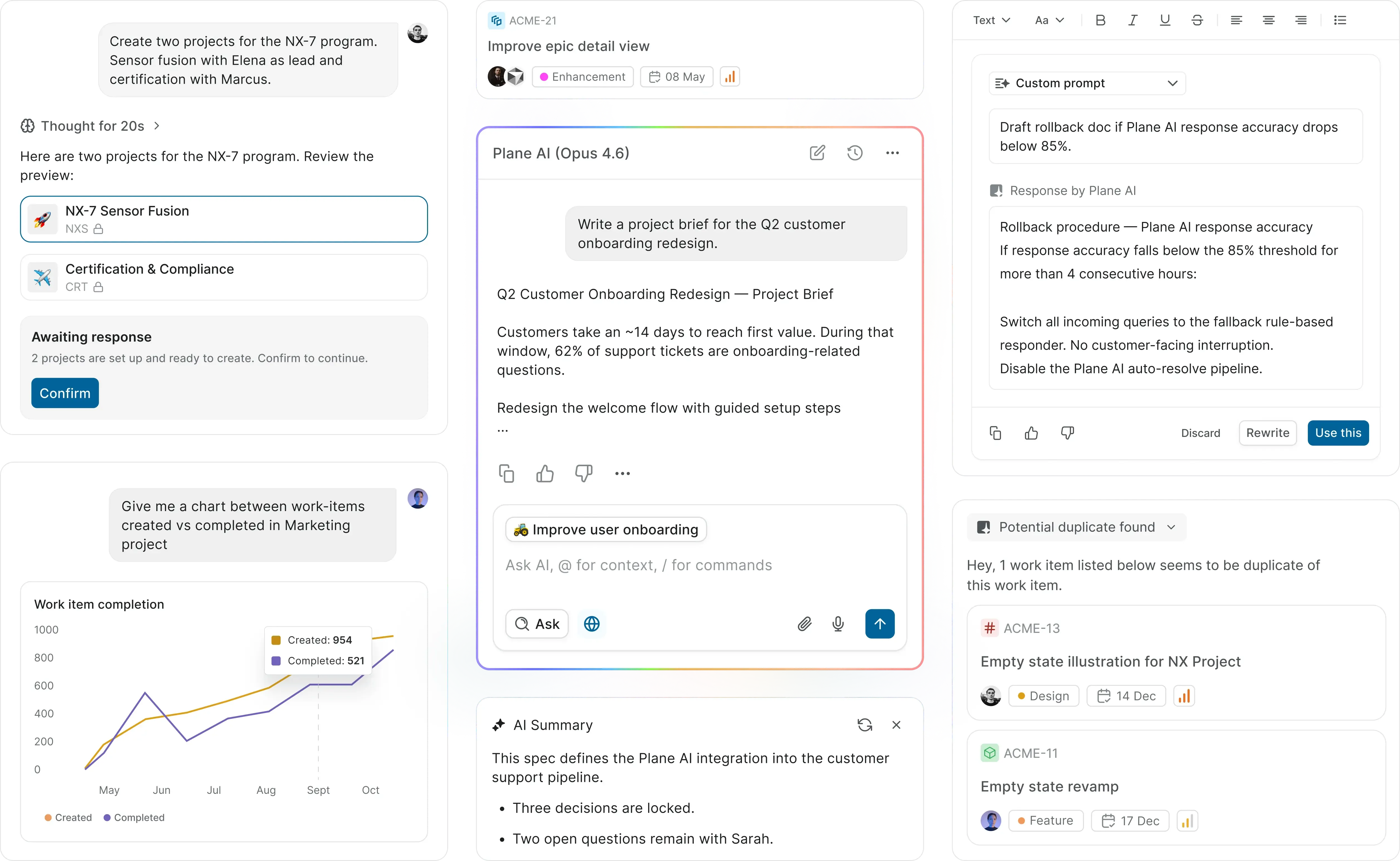
Plane’s published product screenshot. Image: Plane. Explore the official Plane AI page.
What are Plane Agents?
An agent is an assistant configured for a particular responsibility. In Plane, it has its own workspace identity, instructions and permitted projects. A suitable trigger makes it available through a work-item mention or assignment; other triggers can start it automatically.
For example, a team could create an agent whose job is to review a request before a person starts working on it. The value is in making the next step clearer: what is being requested, what information is missing and who needs to supply it.
Plane’s current user documentation labels native agents as a Pro feature. Owners and admins configure them. Availability also depends on the instance: if the enable-agents setting is absent, the documentation says native agents are not yet available on that plan or instance. Source: Agents overview
This article covers the product described in those current documents. It is a researched guide, rather than a hands-on performance review or a claim that every workspace has received the same rollout.
What makes an agent different from an AI chat?
An ordinary chat starts with a question. A configured agent starts with a responsibility and can be activated by work happening around it.
That distinction matters when the same request comes up repeatedly. Instead of a manager reconstructing the brief each time, the team can define a repeatable job with an expected output.
Plane positions this within a wider AI workspace that also supports project creation, workspace questions, summaries and document assistance. Those capabilities are related, but they should not all be treated as autonomous agent runs. Source: Plane AI
The practical test is whether an agent removes a handoff. If someone still has to reconstruct the context, check every line and redo the action, the business has gained another interface without necessarily saving time.
How do Plane Agents work?
A trigger determines when the assistant starts. Plane’s documentation describes the following routes:
| Trigger | What starts the work | Example to test |
|---|---|---|
| Mention | Someone tags the agent in a work-item comment | Review whether a request has enough detail |
| Assignment | The agent becomes an assignee | Gather context before a person takes over |
| Work-item event | A configured creation, update or other supported change | Inspect newly submitted work |
| Schedule | A configured time | Prepare a recurring project note |
Event filters can narrow which items qualify. The matching project must also be within the agent’s access. Direct chat is another way to try an agent, but it sits outside the trigger system. Source: Agent triggers
Our suggestion is to begin with a mention-triggered task. A person can choose the item and inspect the response before you expand to recurring activity. That makes it easier to spot whether the instructions work on incomplete or contradictory requests.
Plane Agents setup: how to create your first agent
The native setup uses Plane’s interface. You do not need to build an OAuth application simply to follow the native agent-creation workflow below.
1. Enable agents in the workspace
A workspace admin opens Workspace Settings → Plane AI → Enable agents. Plane documents this separately from the general workspace AI switch; both are relevant because agents are accessed through the Plane AI sidebar. Source: Agents overview
2. Create an agent for one clear job
Open the agents list and choose Add new agent. Start from scratch or a template. The documented templates are Triage Bot, Standup Summarizer and Spec Writer. Source: Create an agent
Use a name that tells a colleague what to expect. “Request Readiness Reviewer” is more useful than “AI Helper” when several assistants appear in the workspace.
3. Write the instructions and choose the output
Describe what the agent should inspect, what counts as a problem and what it should return. Include the expected behaviour when evidence is missing.
Here is an original example you can adapt for a first trial:
This is a proposed instruction set, not a claim of tested accuracy. It deliberately produces something a person can assess before action is taken.
4. Set the trigger and project scope
For this trial, enable the mention trigger and select one project. In Scope and access, review the projects, web access and connectors before saving.
Plane’s template documentation says all three starter templates initially grant access to all projects, and Spec Writer also enables web access. Adjust those defaults to match the job. Source: Create an agent
Project access is significant: Plane says it adds the bot as a project member with read and write access. Instructions asking for a review-only response should not be mistaken for a technical read-only permission. Source: Agent scope and access
5. Review credentials, set a usage cap and test
Check Advanced settings, including the connected-tools account and the monthly credit cap. Save the configuration and try it against a clear request, an incomplete request and a request containing conflicting information. Source: Create an agent
Keep a simple record of what the person had to correct. The first question is whether the output helps someone make a reliable next decision.
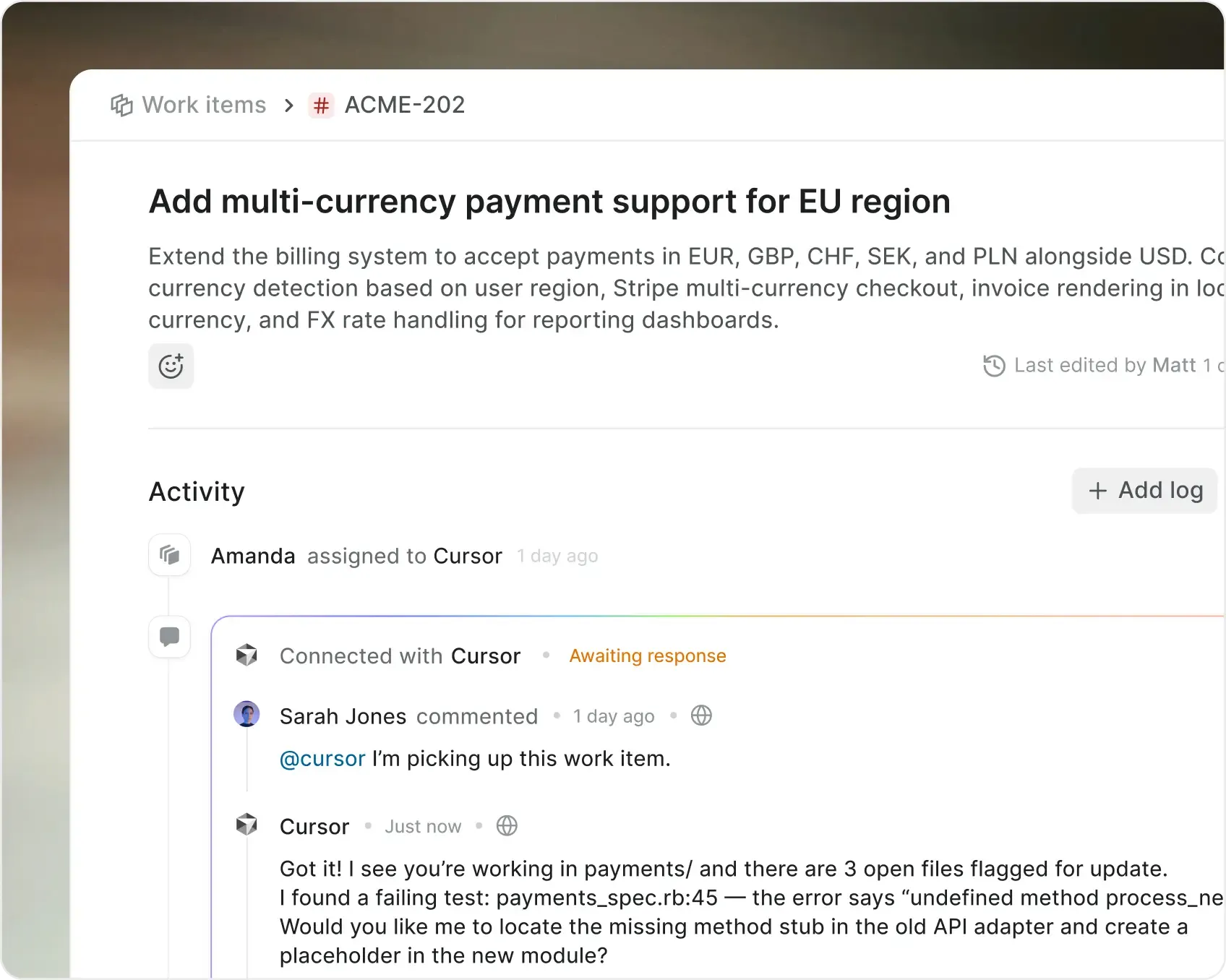
An agent in the context of a work item, as illustrated by Plane. Image: Plane. View the official product explanation.
Plane Agents pricing: seats and usage are different costs
Plane’s public pricing page currently advertises these platform rates:
| Plan | Advertised price | Detail relevant to this guide |
|---|---|---|
| Free | $0 per seat per month | Core project management; do not assume native-agent eligibility |
| Pro | From US$6 per seat per month | Pricing card lists 500 personal AI credits per seat |
| Business | From US$13 per seat per month | Pricing card lists 1,000 personal AI credits per seat |
| Enterprise Grid | Quote on request | Custom allocations and controls |
These are the displayed starting rates checked on 22 September 2026. The pricing page offers monthly and annual billing options; confirm the selected billing period and checkout total before buying. These figures are not a standalone price per agent. Source: Plane pricing
How the agent credit pool works
Plane documents two separate budgets: a member’s personal AI allowance and a shared workspace agent pool. The latter depends on the plan and paid-seat count. A direct chat with an agent uses personal credits, while triggered agent runs use the workspace pool.
Each agent can also have its own monthly cap. A run needs capacity in both places. Unused allowances do not roll over, and budgets reset at the start of each calendar month in UTC. If the workspace pool runs out, new runs cannot start and an active run can stop before finishing. Source: Plane AI credits
That last detail belongs in the operating plan. Decide who notices a stopped run and who handles its unfinished work.
Before purchasing, ask Plane to confirm the actual agent-pool allowance for your seat count, what happens when it is exhausted and whether additional capacity is available. The public headline seat price alone does not answer how much recurring work your agents can perform.
Which business workflows are worth trying?
The strongest starting point is a repetitive task with a clear input and a result someone can verify quickly. The following are proposed trials, rather than promises of built-in integrations or proven customer results.
Check incoming requests before they reach the team
Review whether a request contains enough information to start. For an operations team, that might mean identifying the affected order, the specific problem and the decision being requested.
A useful output is a short list of missing facts. It should reduce the first round of clarification without guessing what the requester meant.
Prepare a project handover
Ask an agent to assemble the relevant work-item history into a draft handover: current state, unresolved questions and evidence of the last agreed decision.
The person taking over should be able to follow the source links. A smooth paragraph without traceable evidence is harder to trust when the handover affects delivery.
Review whether work is ready for testing
Use a defined checklist to inspect the description. Does it say what should happen, under which conditions and what would count as a pass?
This helps distinguish a task that merely sounds complete from one another person can actually test. The agent should highlight gaps; your process owner remains responsible for agreeing the acceptance criteria.
Draft an exception summary
Prepare a concise view of items needing attention: missing decisions, unresolved blockers or deadlines requiring review. Begin with a person triggering the review and checking the result.
The measure is whether it changes a useful decision. A longer daily report is not automatically a better one.
The integration question: can the agent see the real problem?
Suppose a delivery task says “waiting for stock.” The project board may contain comments about the delay, while the actual available quantity sits in an inventory system and the supplier promise sits in a purchasing record.
An agent reading the task can summarise those comments. Confirming whether the delivery can proceed requires the relevant records to be available, current and correctly matched.
Plane supports configured external tools through MCP connectors. Its access guide says individual connector tools must be enabled. It also makes a distinction between interactive runs and event- or schedule-driven runs: the latter use the agent creator’s connector credentials. Source: Agent scope and access
That does not establish a ready-made connection to your ERP, Shopify store or accounting system. For each proposed integration, define:
- Which system owns the authoritative information.
- How records in different tools are matched.
- Which actions the agent may request or perform.
- What happens when data is missing, outdated or unavailable.
- Who reviews exceptions and owns the outcome.
If these questions expose gaps in your operation, investigate them before promising unattended execution. OpsMavix’s Control Pilot starts with one operational workflow, its data connections and a defined result the team can test.
Native agents, custom agents and self-hosting
There are different implementation routes, and a useful Plane Agents tutorial should make the distinction clear.
Native agents use the workspace configuration described above. Custom agents follow Plane’s developer workflow for building an application. The developer guide covers OAuth, bot tokens, verified webhooks and returning activities through the API; it currently labels that developer capability Beta. Source: Building an agent
A team choosing a native template does not need to treat that developer guide as its onboarding checklist. Conversely, a custom connection requires engineering and support beyond writing instructions in a form.
For self-hosted Plane, the AI services must be configured for the instance. The credit documentation says self-hosted customers use their own AI provider, with limits configured by the administrator. Hosting and provider usage therefore need their own budget. Sources: Agents overview · AI usage
Choose the deployment route around the team’s requirements and ability to operate it. Self-hosting changes responsibilities as well as where the software runs.
How to judge whether the first agent is worth keeping
Run a small trial on comparable items and measure the effort around the entire task. An agent that produces a draft quickly can still create extra work if the reviewer has to reconstruct every source.
| Measure | What to record |
|---|---|
| Handling time | Human minutes before and after introducing the agent |
| Correction effort | Time spent fixing or verifying its output |
| Useful completion | Whether the result met the agreed checklist |
| Missed information | Important facts or blockers it failed to identify |
| Usage | Credits consumed for the task |
| Handoff quality | Whether the next person could proceed without another clarification round |
For example, if a review normally takes eight minutes and the agent-assisted version takes three minutes to inspect plus one minute to correct, the saving is four minutes per item. At 50 comparable items a week, that is 200 minutes of human time. These are illustrative assumptions, not Plane performance results.
Use your own measured figures and include implementation, supervision and software costs when deciding whether to expand. Keep the first scope small enough that you can explain what improved.
Frequently asked questions about Plane Agents
Do I need to code to set up Plane Agents?
The native creation flow uses an agent form and templates. Coding belongs to the separate custom-app route or a bespoke integration. Start with the native guide if your goal is a configured workspace assistant.
Why is my agent missing from mentions or the assignee list?
Check the corresponding trigger and the project scope. The documentation ties availability in those pickers to the matching trigger, while project membership determines where the agent can participate. Source: Agent triggers
Does an agent need a paid user seat?
Plane’s developer documentation says installed agent bots do not count as billable users. That does not mean their operation is unlimited or cost-free: platform eligibility, usage budgets and any external service costs still matter. Source: Developer agents overview
Can Plane Agents run every morning?
Time-based triggers are documented. Before scheduling a report, define its scope, output destination and what to do when there is nothing useful to report. Test the content before increasing its frequency. Source: Agent triggers
Will an agent fix inaccurate project data?
Do not assume it will. A discrepancy can be flagged, but deciding which record is correct requires evidence and ownership. If the underlying source is missing or unreliable, an automated summary can simply repeat the problem faster.
Can Plane Agents replace an operations system?
Assess the actual requirement. An assistant reviewing work items and a system controlling stock movements, purchasing or financial records perform different jobs. They may work together, but that relationship must be designed and verified.
Give the agent a workflow that is ready to run
Plane Agents make an interesting proposition: define a job once and bring an assistant into the place where your team already manages the work. The useful next step is to choose one responsibility and prove that the resulting output helps the team.
If requests still move between spreadsheets, inboxes and disconnected systems, the first job may be to connect that process. Clear ownership, reliable data and an agreed handoff make automation easier to assess and support.
OpsMavix’s Control Pilot focuses on one costly operational workflow. We map the process, agree the required result and build and test the relevant connections and controls. For a UK business selling or making physical products, that might start with an order exception, a purchasing handoff or a recurring stock check.
See how the OpsMavix Control Pilot works and book your free Operations Control Audit →
Sources
Product details and prices were checked on 22 September 2026. The workflow examples and trial method are OpsMavix recommendations; they are not a claim of a Plane partnership or tested product performance.