
How to Batch Generate Images in ChatGPT with BatchLane
Turn your prompt list into an organised image workflow with BatchLane. Learn how to queue prompts, automatically download images and keep your files organised.
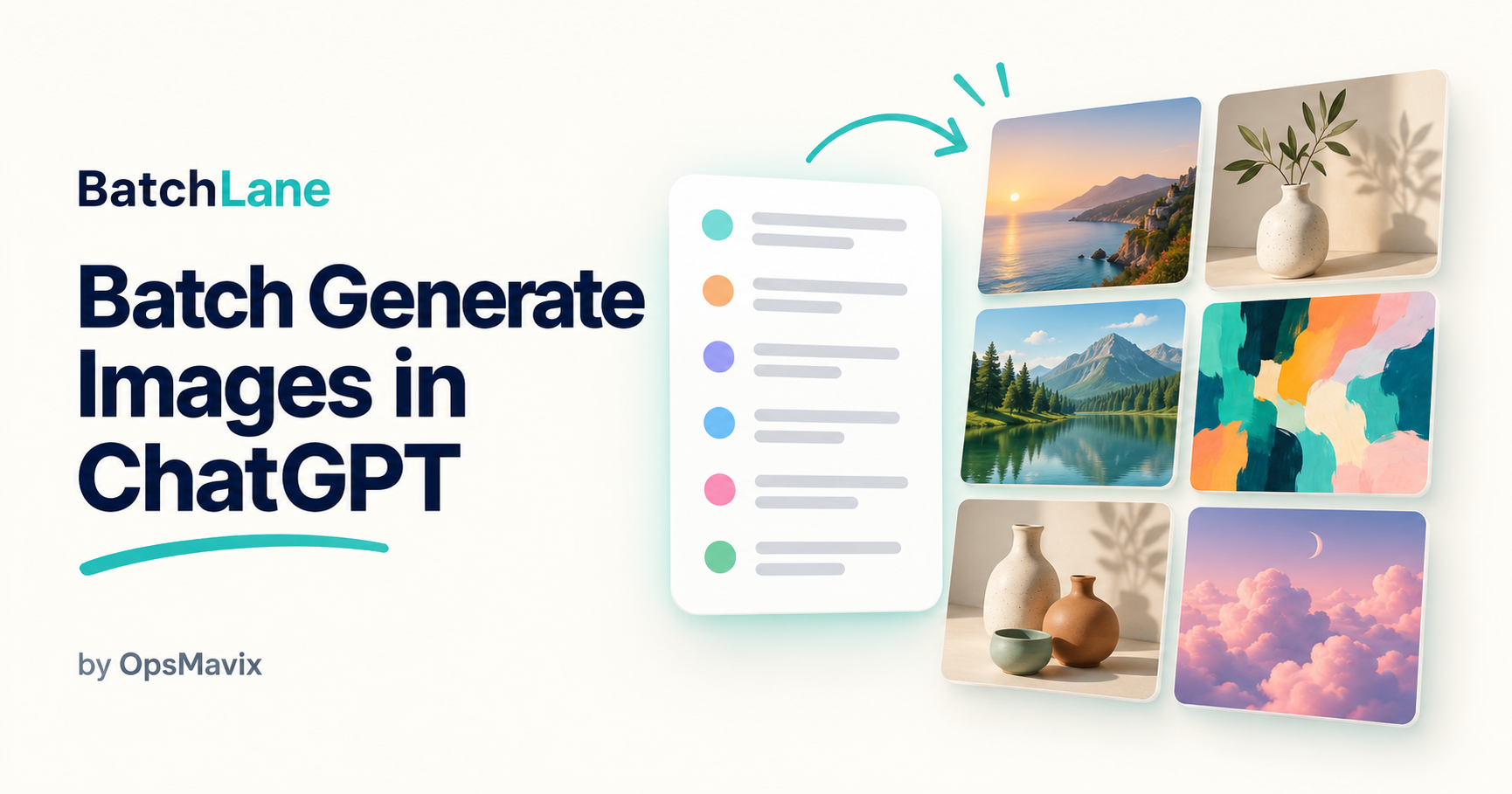
If you want to know how to batch generate images in ChatGPT, the short answer is: write a list of self-contained prompts, run them one after another in a controlled queue, and save every result with a filename that points back to its prompt. You can do that by hand, with a browser extension such as OpsMavix’s BatchLane, or through OpenAI’s Image API and Batch API if you need volume inside your own software.
The practical problem is rarely the generation itself. It is everything around it: keeping prompts consistent, knowing which file came from which request, spotting the failures and recovering when a usage limit stops the run. This guide separates what OpenAI’s own documentation confirms from what product pages claim, then walks through a repeatable workflow.
A batch of images starts with a clear visual brief, not with the generate button. Illustrative photograph, not an OpsMavix project.
Image credit: Theme Photos, Unsplash License. No edits.
Key Takeaways
- Batch image generation means running a planned list of prompts as one organised job with traceable outputs.
- ChatGPT image creation has separate usage limits, and OpenAI’s help centre says Free limits can be stricter than paid plans.
- A browser queue works inside your ChatGPT session; the OpenAI API is a separate route with its own token billing.
- OpenAI documents a Batch API that accepts image generation and edit requests at a 50% discount with a 24 hour window.
- Self-contained prompts, a small test run and a simple review status list matter more than the tool you choose.
- Label figures in your own business case as estimates until you have measured them.
In this guide:
- 1. Decide What Kind of Batch You Need
- 2. Separate Confirmed Facts From Product Claims
- 3. Compare the Ways to Batch Generate Images
- 4. Write Prompts That Stand on Their Own
- 5. Run a Browser Queue in ChatGPT
- 6. Use the Image API and Batch API for Volume
- 7. Name Review and Store Every File
- 8. Troubleshoot a Batch and Plan a Pilot
- Frequently Asked Questions
- How OpsMavix Can Help
1. Decide What Kind of Batch You Need
Three different goals hide behind one phrase
People searching for batch image generation usually want one of three things. They need different workflows, so decide which one you mean before choosing a tool.
| What you want | What the workflow needs |
|---|---|
| Several variations of one idea | Repeated generations of the same prompt, or a request for more than one image per prompt |
| Several pictures arranged inside one image | A single prompt describing a grid, collage or contact sheet |
| Separate files for a list of different prompts | A prompt queue, one generation per item and reliable downloads |
This guide focuses mainly on the third goal: a list where every item has its own brief and needs its own file. That is the case where manual work grows fastest.
Write a one-paragraph brief first
Start with the output you need. “Make lots of images” is too open to review efficiently. A useful brief states the purpose, the number of images, the visual style, the composition and anything to avoid.
If your website or catalogue needs an exact pixel size, treat the generated image as a source file. A requested aspect ratio and a final export size are different requirements, so plan a crop or resize step.
2. Separate Confirmed Facts From Product Claims
AI tools change quickly, and many articles repeat limits that the vendor never published. The first table below was checked against OpenAI’s own documentation and help centre when this guide was updated; the second shows what product pages say about themselves.
Confirmed in OpenAI’s own documentation
| Topic | What OpenAI states | Source |
|---|---|---|
| ChatGPT image creation | Image generation has its own usage limits, separate from messages; Free limits can be stricter and Plus users get higher rate limits | ChatGPT Free Tier FAQ |
| Published limit numbers | The help article gives no image counts or reset times; ChatGPT shows reset timing in the product | Same article |
| Current image models in the API | The guide names gpt-image-2.5-sunburst for editing precision and gpt-image-2.5-flare for faster everyday generation | Image generation guide |
| Images per request | The n parameter must be between 1 and 10 | Create image reference |
| Standard sizes | 1024x1024, 1536x1024 and 1024x1536, with custom sizes for some models | Same reference |
| Output formats | png, jpeg or webp; transparent backgrounds need png or webp | Same reference |
| Prompt length | Up to 32,000 characters | Same reference |
| Access requirement | Organisation verification is required before using GPT Image models | Image generation guide |
| Bulk processing | The Batch API supports /v1/images/generations and /v1/images/edits, at a 50% discount, with a 24 hour completion window | Batch API guide |
Reported by product pages, not independently tested here
| Claim | Where it is stated |
|---|---|
| BatchLane queues prompts into ChatGPT one at a time with paced delays | BatchLane product page |
| It downloads and renames each finished image using a pattern | Same page |
| It can open a fresh chat every N prompts and re-send a style primer | Same page |
| It runs in your logged-in session on your own ChatGPT Plus plan, without an API key | Same page |
| First 100 prompts free, then a one-time US$10 licence for up to three devices | Same page |
BatchLane is made by OpsMavix, so treat these as our own product statements rather than third-party findings. On our website you may also see it called PromptBatch AI; the Chrome Web Store listing name is BatchLane.
3. Compare the Ways to Batch Generate Images
Five routes and where each fits
| Approach | Best suited to | What you manage | Main limitation |
|---|---|---|---|
| Manual ChatGPT workflow | A handful of images or heavy back-and-forth editing | Every prompt, download and filename | Handling time grows with every image |
| Browser queue extension | A prepared list run inside your existing ChatGPT session | The brief, settings, sample check and review | Still subject to your plan’s usage limits and the browser staying open |
| Image API with n above 1 | Several variations of the same prompt in software | API keys, billing, storage and errors | n repeats one prompt; it does not handle a list of different prompts |
| Batch API | Hundreds or thousands of requests that can wait up to 24 hours | JSONL input files, polling, output parsing and storage | Not interactive; results arrive asynchronously |
| Custom application | Image generation tied to a catalogue, CMS or approval process | Integration, permissions, monitoring and maintenance | Build and support effort |
A HYPOTHETICAL worked example of handling time
Assume a team needs 40 separate illustrations. These figures are illustrative assumptions, not measurements.
- Manual route: about 1.5 minutes of hands-on time per image to paste the prompt, watch for completion, download and rename. 40 x 1.5 = 60 minutes.
- Queue route: about 5 minutes to load and configure the list, plus about 0.25 minutes per image for spot checks during the run. 5 + (40 x 0.25) = 5 + 10 = 15 minutes.
- Difference: 60 - 15 = 45 minutes of hands-on time, before final review.
Final review time is the same in both routes. Measure your own figures on a small sample before relying on any saving.
4. Write Prompts That Stand on Their Own
Use a fixed structure
Each prompt should make sense without the conversation before it. That matters most when a tool opens a fresh chat partway through the list, and it is essential for API requests, which carry no chat history unless you send it.
Create an image of [subject or situation].
Visual style: [photography, illustration, 3D or another style].
Composition: [framing, focal point and empty space].
Palette and lighting: [specific choices].
Intended use: [blog header, presentation, product concept].
Constraints: [no lettering, no logo, simple background].
Keep the changing subject separate from the rules that should stay consistent, so you can change the style once without rewriting every line.
A copyable five-prompt example
The list below is an example brief, not the result of a measured test. Each line repeats the shared rules so it can stand alone.
1. Illustrate a small warehouse team checking boxes against a stock list. Editorial illustration, warm off-white background, navy and teal accents, clean shapes, landscape composition, empty space on the right, no text or logos.
2. Illustrate a business owner reviewing orders at a desk. Editorial illustration, warm off-white background, navy and teal accents, clean shapes, landscape composition, empty space on the right, no text or logos.
3. Illustrate a delivery van beside a stack of prepared parcels. Editorial illustration, warm off-white background, navy and teal accents, clean shapes, landscape composition, empty space on the right, no text or logos.
4. Illustrate organised shelves of unbranded products in a compact stockroom. Editorial illustration, warm off-white background, navy and teal accents, clean shapes, landscape composition, empty space on the right, no text or logos.
5. Illustrate a shop owner preparing an online order at a packing bench. Editorial illustration, warm off-white background, navy and teal accents, clean shapes, landscape composition, empty space on the right, no text or logos.

A browser queue runs in the session you already use, so the computer and browser need to stay available. Illustrative photograph, not an OpsMavix project.
Image credit: Jakub Żerdzicki, Unsplash License. No edits.
5. Run a Browser Queue in ChatGPT
How a queue works in practice
A browser queue submits one prompt, waits for the image, saves it and moves to the next item. It does not render every picture at the same time, and it does not raise the usage limits of your ChatGPT plan.
With BatchLane, the steps described on the product page and in the setup guide are:
- Install BatchLane from the Chrome Web Store and open ChatGPT in the same browser.
- Paste your list or load a .txt or .md file; numbered or titled formats are accepted.
- Choose a download folder and a filename pattern.
- Optionally set a style primer and how often to start a fresh chat.
- Run two or three prompts first, then the full list.
Test a small sample before the full run
Start with a straightforward prompt and one that tests the hardest part of the brief. Before expanding the run, check that:
- Each request produced an image rather than a text reply.
- The downloaded file opens and has usable dimensions.
- You can match each filename to its prompt.
- The composition leaves the space your final layout needs.
Fresh chats and style drift
Long conversations can carry earlier instructions into later images. Starting fresh chats at intervals reduces that carry-over, but a fresh chat also loses the context you built. That is why self-contained prompts matter. BatchLane’s style drift guide covers its reset and primer settings. There is no universal reset interval; try a small set and adjust.
Background running
The product page says the queue keeps working while the browser is minimised. It still needs the computer and browser session to stay on, so check the first few downloads before leaving a long run.
6. Use the Image API and Batch API for Volume
When the API route makes sense
If images need to flow into your own system, such as a product catalogue or content platform, the OpenAI image generation guide is the starting point. It documents two routes: the Image API for generations and edits, and image generation as a tool inside the Responses API, which supports multi-turn editing.
Points to plan for, all taken from OpenAI’s documentation:
- Organisation verification is required before using GPT Image models.
- GPT Image models return base64-encoded images, so your code must decode and store them.
- n requests up to 10 images for one prompt; a list of different prompts still needs one request per prompt.
- Quality, size, format and compression are adjustable, and transparent backgrounds need png or webp output.
- API image generation is billed per input and output token, as shown on the OpenAI pricing page.
How the Batch API helps
The Batch API takes a JSONL file with one request per line, each with its own custom_id. OpenAI states a 50% discount compared with synchronous requests, a 24 hour completion window, up to 50,000 requests per batch and input files up to 200 MB. Batch usage has its own rate-limit pool. If a batch expires, completed results are kept and billed, and unfinished requests appear in the error file.
The custom_id is your traceability key. Use your own product code or image reference, so every output maps straight back to a record.
A HYPOTHETICAL worked example of API cost
OpenAI prices image models per token rather than as a flat price per image, so check the current pricing page for real rates. The figures below use an invented average of US$0.10 per image purely to show the arithmetic.
| Step | Calculation | Hypothetical cost |
|---|---|---|
| 400 images, synchronous requests | 400 x US$0.10 | US$40.00 |
| Same 400 images through the Batch API at 50% off | 400 x US$0.05 | US$20.00 |
| 10% rejected at review and regenerated in a second batch | 40 x US$0.05 | US$2.00 |
| Total through the Batch API | 20.00 + 2.00 | US$22.00 |
The saving in this example is 40.00 - 22.00 = US$18.00, at the cost of waiting up to 24 hours. Developer time, storage and review effort are not included and often matter more than the generation fee.
7. Name Review and Store Every File
Use a naming convention that explains the job
warehouse-campaign-01-stock-check.png
warehouse-campaign-02-order-review.png
warehouse-campaign-03-delivery-van.png
These are suggested final filenames. BatchLane’s auto-rename guide explains its own naming patterns, and the auto-download guide covers saving files during a run. Browser download settings can still affect where files land, so confirm the folder with your test sample.
Review the set, not single images
Look at the images together. Check colours, framing, accidental lettering, factual details and whether they belong in the same publication. Then give every prompt one status:
| Status | Meaning | Next action |
|---|---|---|
| Approved | Usable as it stands | Move to the final folder |
| Revise | Close, but needs a prompt change | Edit the prompt and rerun only this item |
| Missing | No usable file was produced | Find the cause before retrying |
New images versus old chat history
Saving new images during a batch is different from exporting your existing image history. If you need older images from past conversations, use a workflow that explicitly supports that; BatchLane has a separate guide to downloading existing ChatGPT images.
8. Troubleshoot a Batch and Plan a Pilot
Common problems
| Problem | What to check first |
|---|---|
| A request returns text instead of an image | Start the prompt with “Create an image” and confirm image generation works in the session |
| Files are missing from the folder | Check browser downloads, the destination setting and whether the request completed |
| Outputs look inconsistent | Simplify the shared brief and repeat the key visual rules in each line |
| A usage limit stops the run | Wait for the reset ChatGPT shows; keep completed files and the remaining list |
| A file does not fit the layout | Check its dimensions and plan a crop or resize |
| A restart repeats finished work | Use the approved, revise and missing list to rerun only open items |
| An API batch shows expired requests | Read the error file and resubmit only the failed custom_id values |
Do not retry a failing prompt indefinitely. Resolve the cause first, whether that is the wording, a content policy refusal or a limit.
A pilot checklist
- Write the one-paragraph brief and the prompt list.
- Run three prompts and check the files, names and dimensions.
- Adjust the brief, then run ten prompts.
- Record hands-on time, failures and rework for those ten.
- Decide whether a browser queue, the API or a custom workflow fits the volume.
- Only then scale to the full list.
Frequently Asked Questions
How do I generate multiple images in ChatGPT?
Decide whether you need variations of one idea, a collage in one image or separate files for separate prompts. For separate files, prepare a self-contained prompt list and run it in sequence, either manually or with a queue.
Does ChatGPT limit how many images I can create?
Yes. OpenAI’s help centre says image generation has its own usage limits, that Free limits can be stricter than paid plans and that Plus users get higher rate limits. It does not publish fixed numbers; ChatGPT shows when you can continue.
Can BatchLane render several images at the same time?
No. According to its product page, it submits prompts one at a time with paced delays. It organises a batch rather than running requests in parallel.
Is BatchLane free?
Its product page lists the first 100 prompts free, then a one-time US$10 licence for up to three devices. Your ChatGPT plan is separate, and the page says it runs on your own ChatGPT Plus subscription.
Do I need an OpenAI API key to batch generate images?
Not for a browser queue that works inside your ChatGPT session. You do need an API key, billing and organisation verification to use GPT Image models through the OpenAI API or Batch API.
Is the OpenAI Batch API cheaper for images?
OpenAI’s Batch API guide states a 50% discount compared with synchronous requests and lists the image generation and edit endpoints as supported. The trade-off is a completion window of up to 24 hours.
Does BatchLane send my prompts to OpsMavix?
The BatchLane privacy policy says prompts, conversations and generated images stay on your device and are not sent to OpsMavix. ChatGPT still processes them, licence validation sends only the licence key and Stripe handles payments.
Can OpsMavix build a custom image generation workflow?
Yes. OpsMavix can build focused applications or a full custom ERP, and can configure or integrate suitable existing tools, including image generation APIs, where those approaches fit the requirements.
How OpsMavix Can Help
OpsMavix makes BatchLane for people who batch images in ChatGPT, but our main work is automating repetitive operations workflows: the copying, renaming, checking and re-keying that sits between systems.
That might mean connecting product records to an ecommerce inventory automation process, routing approvals through an invoice approval workflow or giving a team one project operations dashboard instead of scattered files.
Contact OpsMavix with one recent batch of repetitive work, the records behind it and the handoff that creates the most rework. We can use that evidence to define requirements and a practical pilot.
Getting value from OpsMavix? Add us as a preferred source on Google — you'll see more of our operations content in your AI Overviews, AI Mode and Search.